
Countdown timers are a great way to create urgency on donation pages especially around appeals.
Creating a new Appeal with a Countdown Timer
- Please use the advanced template
(If you have an existing appeal that you want to add a timer to, please see the next section)
Adding a Countdown Timer to an existing Appeal Page
- Comments Widgets can be inserted in any text block or box on your appeal page.
- Open the Appeal Page editor
- Edit a text block by clicking on the pen
 icon
icon - Place the cursor in the location you want to embed the timer. The embedded widget will be inserted here.
- Click on the plus
 icon to insert new content
- Choose the "Widget" button from the menu

- You should see a Widget Menu:
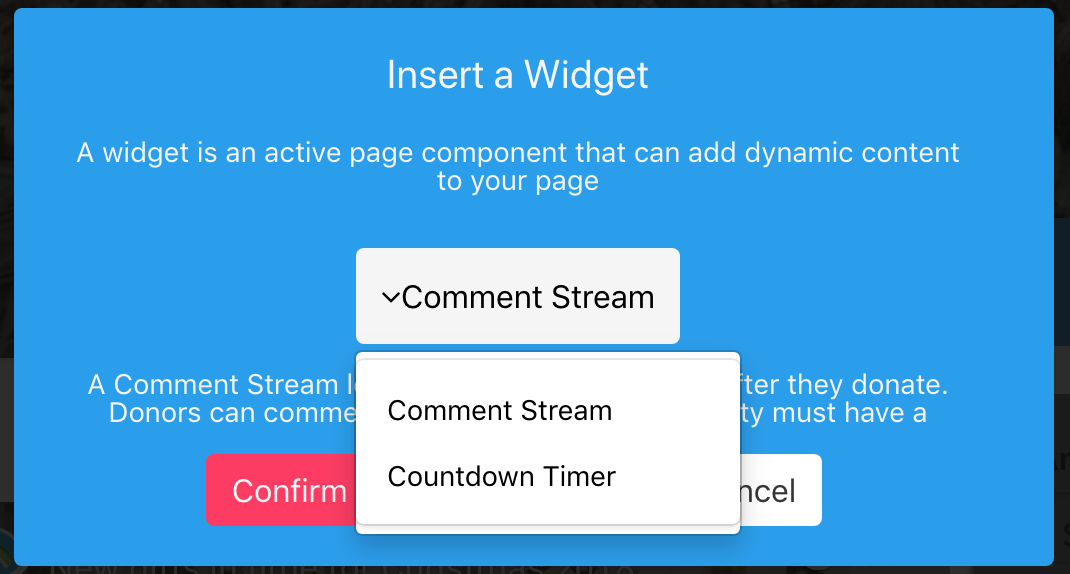
- Choose "Countdown Timer"
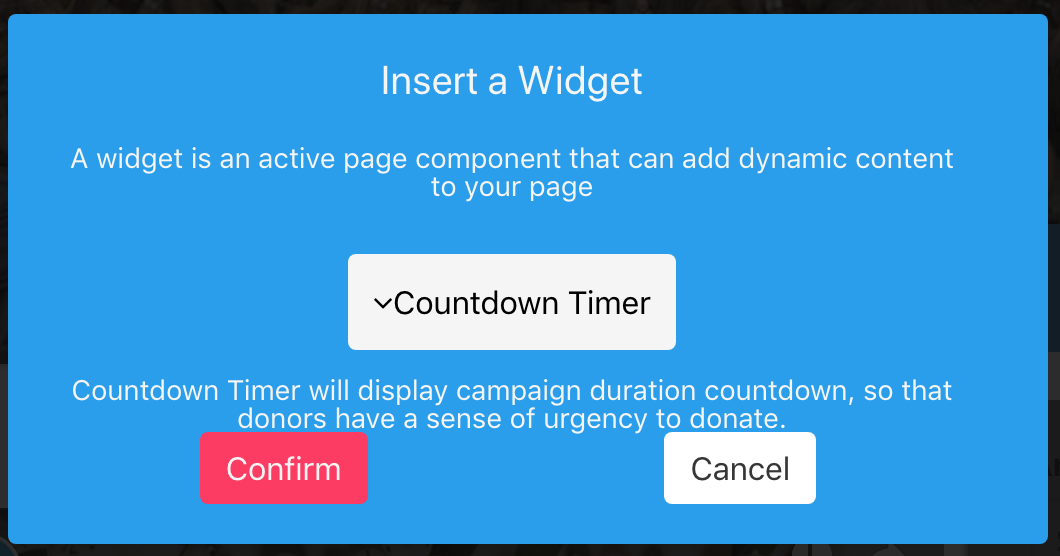
- Click "Confirm"
Changing Countdown Timer Settings
2. You should see the below in your text box tile:

3. Click on the right most widget
4. Select when you would like the count-down timer to end
5. Tick the box which says "Hide Countdown timer when reach goal"

6. Remember to publish the page once completed
Hiding Countdown Timer
Note, if you do not want the countdown timer on the page but then you want to add it back at a later stage, please let follow the steps.
1. Select a date which has already passed
2. Select Hide Counter When Reach Due Date
This will then hide it until you are ready to bring this back.
3. When ready, select a new date and then push publish
Deleting a Countdown Timer
- Edit a text block by clicking on the pen icon
- Highlight the Timer (click and drag or use Shift+ arrow keys)
- Press the "delete" or "backspace" key
Comments
0 comments
Please sign in to leave a comment.